Android Fragment使用
原文出处:Android手机平板两不误,使用Fragment实现兼容手机和平板的程序
记得我之前参与开发过一个华为的项目,要求程序可以支持好几种终端设备,其中就包括Android手机和Android Pad。然后为了节省人力,公司无节操地让Android手机和Android Pad都由我们团队开发。当时项目组定的方案是,制作两个版本的App,一个手机版,一个Pad版。由于当时手机版的主体功能已经做的差不多了,所以Pad版基本上就是把手机版的代码完全拷过来,然后再根据平板的特性部分稍作修改就好了。
但是,从此以后我们就非常苦逼了。每次要添加什么新功能,同样的代码要写两遍。每次要修复任何bug,都要在手机版代码和Pad版代码里各修改一遍。这还不算什么,每 到出版本的时候就更离谱了。华为要求每次需要出两个版本,一个华为内网环境的版本,一个客户现场的版本,而现在又分了手机和Pad,也就是每次需要出四个版本。如果在出完版本后自测还出现了问题,就可以直接通宵了。这尤其是苦了我们的X总(由于他dota打的比较好,我都喜欢叫他X神)。他在我们项目组中单独维护一个模块,并且每 次打版本都是由他负责,加班的时候我们都能跑,就是他跑不了。这里也是赞扬一下我们X神的敬业精神,如果他看得到的话。
经历过那么苦逼时期的我也就开始思考,可不可以制作同时兼容手机和平板的App呢?答案当然是肯定的,不过我这个人比较懒,一直也提不起精神去钻研这个问题。直到我一个在美国留学的朋友Gong让我帮她解决她的研究生导师布置的作业(我知道你研究生导师看不懂中文^-^),正好涉及到了这一块,也就借此机会研究了一下,现在拿出来跟大家分享。
我们先来看一下Android手机的设置界面,点击一下Sound,可以跳转到声音设置界面,如下面两张图所示:
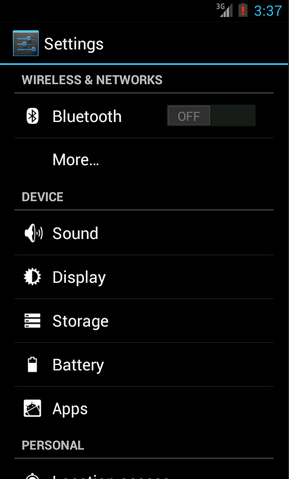
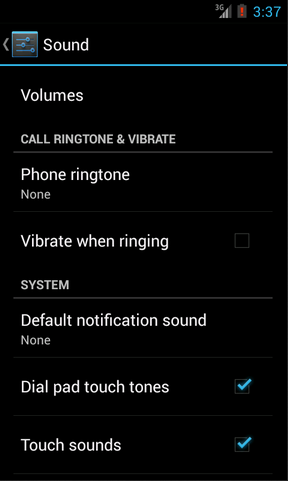
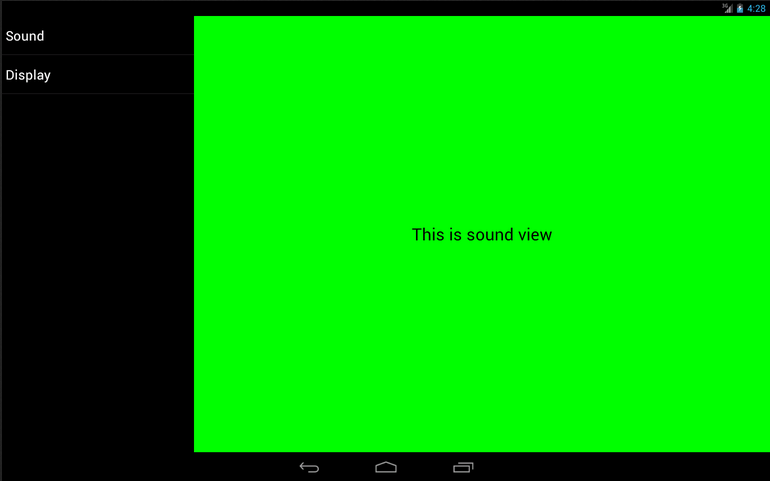
然后再来看一下Android Pad的设置界面,主设置页面和声音设置页面都是在一个界面显示的,如下图所示:
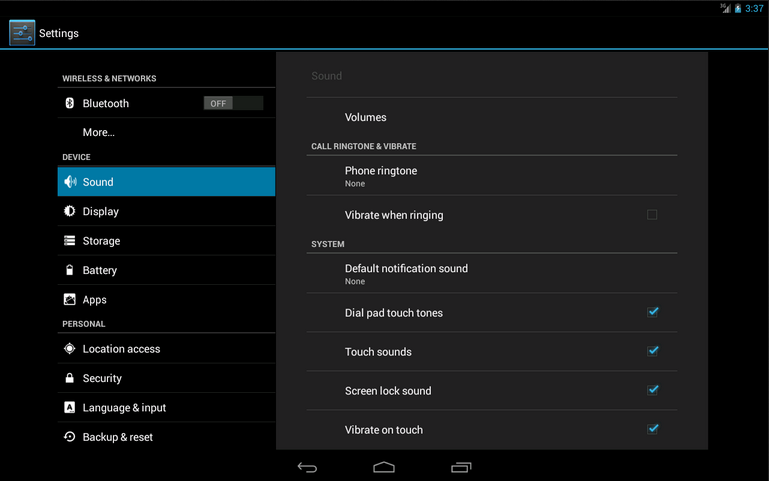
如果这分别是两个不同的App做出的效果,那没有丝毫惊奇之处。但如果是同一个App,在手机上和平板上运行分别有以上两种效果的话,你是不是就已经心动了?我们现在就来模拟实现一下。
首先你需要对Fragment有一定的了解,如果你还没接触过Fragment,建议可以先阅读 Android Fragment完全解析,关于碎片你所需知道的一切这篇文章。并且本次的代码是运行在Android 4.0版本上的,如果你的SDK版本还比较低的话,建议可以先升升级了。
新建一个Android项目,取名叫FragmentDemo。打开或新建MainActivity作为程序的主Activity,里面有如下自动生成的内容:
public class MainActivity extends Activity {
    @Override
    public void onCreate(Bundle savedInstanceState) {
        super.onCreate(savedInstanceState);
        setContentView(R.layout.activity_main);
    }
}
作为一个Android老手,上面的代码实在太小儿科了,每个Activity中都会有这样的代码。不过今天我们的程序可不会这么简单,加载布局这一块还是大有文章的。
打开或新建res/layout/activity_main.xml作为程序的主布局文件,里面代码如下:
<LinearLayout xmlns:android="http://schemas.android.com/apk/res/android"
    xmlns:tools="http://schemas.android.com/tools"
    android:layout_width="fill_parent"
    android:layout_height="fill_parent"
    android:orientation="horizontal"
    tools:context=".MainActivity" >
    <fragment
        android:id="@+id/menu_fragment"
        android:name="com.example.fragmentdemo.MenuFragment"
        android:layout_width="fill_parent"
        android:layout_height="fill_parent"
        />
</LinearLayout>
这个布局引用了一个MenuFragment,我们稍后来进行实现,先来看一下今天的一个重点,我们需要再新建一个activity_main.xml,这个布局文件名和前面的主布局文件名是一样的,但是要放在不同的目录下面。
在res目录下新建layout-large目录,然后这个目录下创建新的activity_main.xml,加入如下代码:
<LinearLayout xmlns:android="http://schemas.android.com/apk/res/android"
    xmlns:tools="http://schemas.android.com/tools"
    android:layout_width="fill_parent"
    android:layout_height="fill_parent"
    android:orientation="horizontal"
    android:baselineAligned="false"
    tools:context=".MainActivity"
    >
    <fragment
        android:id="@+id/left_fragment"
        android:name="com.example.fragmentdemo.MenuFragment"
        android:layout_width="0dip"
        android:layout_height="fill_parent"
        android:layout_weight="1"
        />
    <FrameLayout
        android:id="@+id/details_layout"
        android:layout_width="0dip"
        android:layout_height="fill_parent"
        android:layout_weight="3"
        ></FrameLayout>
</LinearLayout>
这个布局同样也引用了MenuFragment,另外还加入了一个FrameLayout用于显示详细内容。其实也就是分别对应了平板界面上的左侧布局和右侧布局。
这里用到了动态加载布局的技巧,首先Activity中调用setContentView(R.layout.activity_main) ,表明当前的Activity想加载activity_main这个布局文件。而Android系统又会根据当前的运行环境判断程序是否运行在大屏幕设备上,如果运行在大屏幕设备上,就加载layout-large目录下的activity_main.xml,否则就默认加载layout目录下的activity_main.xml。
关于动态加载布局的更多内容,可以阅读 [Android官方提供的支持不同屏幕大小的全部方法](http://blog.csdn.net/sinyu890807/article/details/8830286) 这篇文章。
下面我们来实现久违的MenuFragment,新建一个MenuFragment类继承自Fragment,具体代码如下:
public class MenuFragment extends Fragment implements OnItemClickListener {
    /**
     * 菜单界面中只包含了一个ListView。
     */
    private ListView menuList;
    /**
     * ListView的适配器。
     */
    private ArrayAdapter<String> adapter;
    /**
     * 用于填充ListView的数据,这里就简单只用了两条数据。
     */
    private String[] menuItems = { "Sound", "Display" };
    /**
     * 是否是双页模式。如果一个Activity中包含了两个Fragment,就是双页模式。
     */
    private boolean isTwoPane;
    /**
     * 当Activity和Fragment建立关联时,初始化适配器中的数据。
     */
    @Override
    public void onAttach(Activity activity) {
        super.onAttach(activity);
        adapter = new ArrayAdapter<String>(activity, android.R.layout.simple_list_item_1, menuItems);
    }
    /**
     * 加载menu_fragment布局文件,为ListView绑定了适配器,并设置了监听事件。
     */
    @Override
    public View onCreateView(LayoutInflater inflater, ViewGroup container, Bundle savedInstanceState) {
        View view = inflater.inflate(R.layout.menu_fragment, container, false);
        menuList = (ListView) view.findViewById(R.id.menu_list);
        menuList.setAdapter(adapter);
        menuList.setOnItemClickListener(this);
        return view;
    }
    /**
     * 当Activity创建完毕后,尝试获取一下布局文件中是否有details_layout这个元素,如果有说明当前
     * 是双页模式,如果没有说明当前是单页模式。
     */
    @Override
    public void onActivityCreated(Bundle savedInstanceState) {
        super.onActivityCreated(savedInstanceState);
        if (getActivity().findViewById(R.id.details_layout) != null) {
            isTwoPane = true;
        } else {
            isTwoPane = false;
        }
    }
    /**
     * 处理ListView的点击事件,会根据当前是否是双页模式进行判断。如果是双页模式,则会动态添加Fragment。
     * 如果不是双页模式,则会打开新的Activity。
     */
    @Override
    public void onItemClick(AdapterView<?> arg0, View view, int index, long arg3) {
        if (isTwoPane) {
            Fragment fragment = null;
            if (index == 0) {
                fragment = new SoundFragment();
            } else if (index == 1) {
                fragment = new DisplayFragment();
            }
            getFragmentManager().beginTransaction().replace(R.id.details_layout, fragment).commit();
        } else {
            Intent intent = null;
            if (index == 0) {
                intent = new Intent(getActivity(), SoundActivity.class);
            } else if (index == 1) {
                intent = new Intent(getActivity(), DisplayActivity.class);
            }
            startActivity(intent);
        }
    }
}
这个类的代码并不长,我简单的说明一下。在onCreateView方法中加载了menu_fragment这个布局,这个布局里面包含了一个ListView,然后我们对这个ListView填充了两个简单的数据 "Sound" 和 "Display" 。又在onActivityCreated方法中做了一个判断,如果Activity的布局中包含了details_layout这个元素,那么当前就是双页模式,否则就是单页模式。onItemClick方法则处理了ListView的点击事件,发现如果当前是双页模式,就动态往details_layout中添加Fragment,如果当前是单页模式,就直接打开新的Activity。
我们把MenuFragment中引用到的其它内容一个个添加进来。新建menu_fragment.xml文件,加入如下代码:
<?xml version="1.0" encoding="UTF-8"?>
<LinearLayout xmlns:android="http://schemas.android.com/apk/res/android"
    android:layout_width="fill_parent"
    android:layout_height="fill_parent" >
    <ListView
        android:id="@+id/menu_list"
        android:layout_width="fill_parent"
        android:layout_height="fill_parent"
        ></ListView>
</LinearLayout>
然后新建SoundFragment,里面内容非常简单:
public class SoundFragment extends Fragment {
    @Override
    public View onCreateView(LayoutInflater inflater, ViewGroup container, Bundle savedInstanceState) {
        View view = inflater.inflate(R.layout.sound_fragment, container, false);
        return view;
    }
}
这里SoundFragment需要用到sound_fragment.xml布局文件,因此这里我们新建这个布局文件,并加入如下代码:
<?xml version="1.0" encoding="utf-8"?>
<RelativeLayout xmlns:android="http://schemas.android.com/apk/res/android"
    android:layout_width="match_parent"
    android:layout_height="match_parent"
    android:background="#00ff00"
    android:orientation="vertical" >
    <TextView
        android:layout_width="wrap_content"
        android:layout_height="wrap_content"
        android:layout_centerInParent="true"
        android:textSize="28sp"
        android:textColor="#000000"
        android:text="This is sound view"
        />
</RelativeLayout>
同样的道理,我们再新建DisplayFragment和display_fragment.xml布局文件:
public class DisplayFragment extends Fragment {
    public View onCreateView(LayoutInflater inflater, ViewGroup container, Bundle savedInstanceState) {
        View view = inflater.inflate(R.layout.display_fragment, container, false);
        return view;
    }
}


<?xml version="1.0" encoding="utf-8"?>
<RelativeLayout xmlns:android="http://schemas.android.com/apk/res/android"
    android:layout_width="match_parent"
    android:layout_height="match_parent"
    android:background="#0000ff"
    android:orientation="vertical" >
    <TextView
        android:layout_width="wrap_content"
        android:layout_height="wrap_content"
        android:layout_centerInParent="true"
        android:textSize="28sp"
        android:textColor="#000000"
        android:text="This is display view"
        />
</RelativeLayout>
然后新建SoundActivity,代码如下:
public class SoundActivity extends Activity {
    @Override
    protected void onCreate(Bundle savedInstanceState) {
        super.onCreate(savedInstanceState);
        setContentView(R.layout.sound_activity);
    }
}
这个Activity只是加载了一个布局文件,现在我们来实现sound_activity.xml这个布局文件:
<?xml version="1.0" encoding="utf-8"?>
<fragment xmlns:android="http://schemas.android.com/apk/res/android"
    android:id="@+id/sound_fragment"
    android:name="com.example.fragmentdemo.SoundFragment"
    android:layout_width="match_parent"
    android:layout_height="match_parent" >
</fragment>
这个布局文件引用了SoundFragment,这样写的好处就是,以后我们只需要在SoundFragment中修改代码,SoundActivity就会跟着自动改变了,因为它所有的代码都是从SoundFragment中引用过来的。
好,同样的方法,我们再完成DisplayActivity:
public class DisplayActivity extends Activity {
    @Override
    protected void onCreate(Bundle savedInstanceState) {
        super.onCreate(savedInstanceState);
        setContentView(R.layout.display_activity);
    }
}
然后加入display_activity.xml:
<?xml version="1.0" encoding="utf-8"?>
<fragment xmlns:android="http://schemas.android.com/apk/res/android"
    android:id="@+id/display_fragment"
    android:name="com.example.fragmentdemo.DisplayFragment"
    android:layout_width="match_parent"
    android:layout_height="match_parent" >
</fragment>
现在所有的代码就都已经完成了,我们来看一下效果吧。
首先将程序运行在手机上,效果图如下:
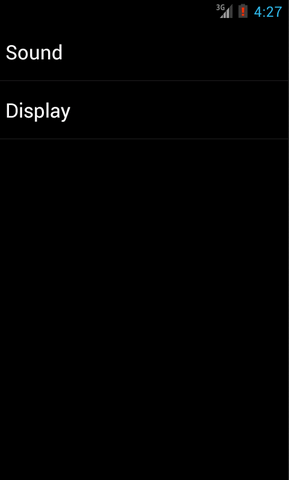
分别点击Sound和Display,界面会跳转到声音和显示界面:
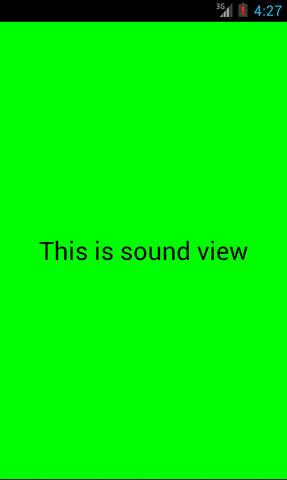
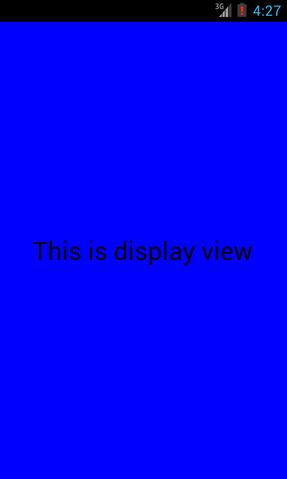
然后将程序在平板上运行,点击Sound,效果图如下:
然后点击Display切换到显示界面,效果图如下:
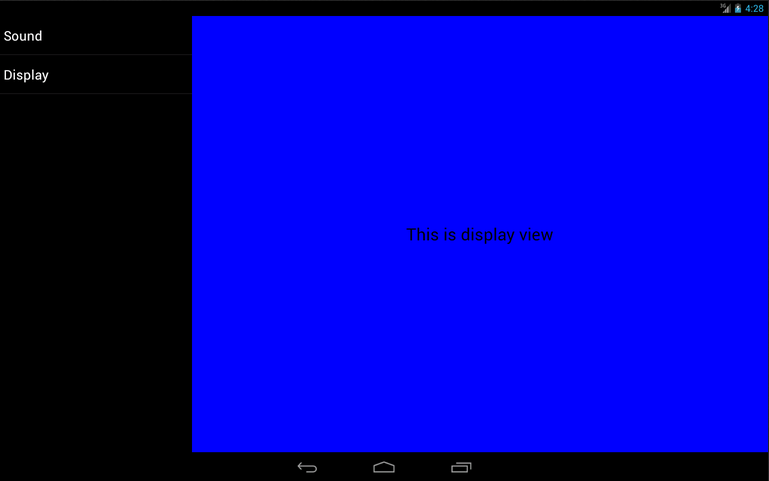
这样我们就成功地让程序同时兼容手机和平板了。当然,这只是一个简单的demo,更多复杂的内容需要大家自己去实现了。
好了,今天的讲解到此结束,有疑问的朋友请在下面留言。
原文出处:Android Fragment应用实战,使用碎片向ActivityGroup说再见
现在Fragment的应用真的是越来越广泛了,之前Android在3.0版本加入Fragment的时候,主要是为了解决Android Pad屏幕比较大,空间不能充分利用的问题,但现在即使只是在手机上,也有很多的场景可以运用到Fragment了,今天我们就来学习其中一个特别棒的应用技巧。
很多手机应用都会有一个非常类似的功能,即屏幕的下方显示一行Tab标签选项,点击不同的标签就可以切换到不同的界面,如以下几个应用所示:
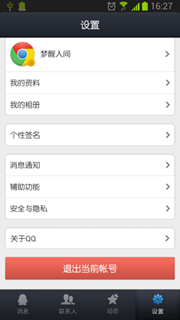
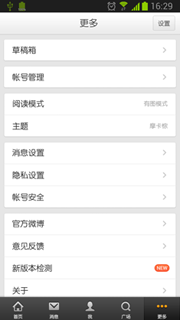
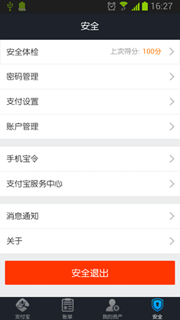
上面三个应用从左到右分别是QQ、新浪微博和支付宝钱包,可见,这种底部标签式的布局策略真的非常常见。
那么话说回来,这种效果到底是如何的呢?熟悉Android的朋友一定都会知道,很简单嘛,使用TabHost就OK了!但是殊不知,TabHost并非是那么的简单,它的可扩展性非常的差,不能随意地定制Tab项显示的内容,而且运行还要依赖于ActivityGroup。ActivityGroup原本主要是用于为每一个TabHost的子项管理一个单独的Activity,但目前已经被废弃了。为什么呢?当然就是因为Fragment的出现了!查看Android官方文档中ActivityGroup的描述,如下所示:
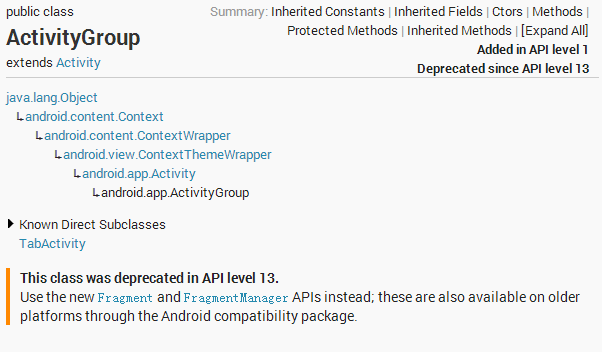
可以看到,在API 13的时候Android就已经将ActivityGroup废弃掉了,并且官方推荐的替代方式就是使用Fragment,因为它使用起来更加的灵活。那么剩下的问题就是如何借助Fragment来完成类似于TabHost一般的效果了,因此我们自然要动起手来了。
在开始之前,首先你必须已经了解Fragment的用法了,如果你对Fragment还比较陌生的话,建议先去阅读我前面的一篇文章 Android Fragment完全解析,关于碎片你所需知道的一切。
另外,我们还应该准备好程序所需要的资源,比如说每一个Tab项中所用到的图片。我已经事先从QQ里截好了几张图作为这个项目的资源,稍后会连同源码一起给出。
新建一个项目,起名就叫FragmentDemo,这里我使用的是4.0的API。
下面开始编程工作,这里我们首先需要去编写一个类似于QQ的主界面,当然只会去编写界面最下方的TabHost部分,而不会编写上面的内容界面部分,因为内容界面是应该写在Fragment的布局里的。打开或新建activity_main.xml作为程序的主布局文件,在里面加入如下代码:
<LinearLayout xmlns:android="http://schemas.android.com/apk/res/android"
    android:layout_width="match_parent"
    android:layout_height="match_parent"
    android:orientation="vertical" >
    <FrameLayout
        android:id="@+id/content"
        android:layout_width="match_parent"
        android:layout_height="0dp"
        android:layout_weight="1" >
    </FrameLayout>
    <LinearLayout
        android:layout_width="match_parent"
        android:layout_height="60dp"
        android:background="@drawable/tab_bg" >
        <RelativeLayout
            android:id="@+id/message_layout"
            android:layout_width="0dp"
            android:layout_height="match_parent"
            android:layout_weight="1" >
            <LinearLayout
                android:layout_width="match_parent"
                android:layout_height="wrap_content"
                android:layout_centerVertical="true"
                android:orientation="vertical" >
                <ImageView
                    android:id="@+id/message_image"
                    android:layout_width="wrap_content"
                    android:layout_height="wrap_content"
                    android:layout_gravity="center_horizontal"
                    android:src="@drawable/message_unselected" />
                <TextView
                    android:id="@+id/message_text"
                    android:layout_width="wrap_content"
                    android:layout_height="wrap_content"
                    android:layout_gravity="center_horizontal"
                    android:text="消息"
                    android:textColor="#82858b" />
            </LinearLayout>
        </RelativeLayout>
        <RelativeLayout
            android:id="@+id/contacts_layout"
            android:layout_width="0dp"
            android:layout_height="match_parent"
            android:layout_weight="1" >
            <LinearLayout
                android:layout_width="match_parent"
                android:layout_height="wrap_content"
                android:layout_centerVertical="true"
                android:orientation="vertical" >
                <ImageView
                    android:id="@+id/contacts_image"
                    android:layout_width="wrap_content"
                    android:layout_height="wrap_content"
                    android:layout_gravity="center_horizontal"
                    android:src="@drawable/contacts_unselected" />
                <TextView
                    android:id="@+id/contacts_text"
                    android:layout_width="wrap_content"
                    android:layout_height="wrap_content"
                    android:layout_gravity="center_horizontal"
                    android:text="联系人"
                    android:textColor="#82858b" />
            </LinearLayout>
        </RelativeLayout>
        <RelativeLayout
            android:id="@+id/news_layout"
            android:layout_width="0dp"
            android:layout_height="match_parent"
            android:layout_weight="1" >
            <LinearLayout
                android:layout_width="match_parent"
                android:layout_height="wrap_content"
                android:layout_centerVertical="true"
                android:orientation="vertical" >
                <ImageView
                    android:id="@+id/news_image"
                    android:layout_width="wrap_content"
                    android:layout_height="wrap_content"
                    android:layout_gravity="center_horizontal"
                    android:src="@drawable/news_unselected" />
                <TextView
                    android:id="@+id/news_text"
                    android:layout_width="wrap_content"
                    android:layout_height="wrap_content"
                    android:layout_gravity="center_horizontal"
                    android:text="动态"
                    android:textColor="#82858b" />
            </LinearLayout>
        </RelativeLayout>
        <RelativeLayout
            android:id="@+id/setting_layout"
            android:layout_width="0dp"
            android:layout_height="match_parent"
            android:layout_weight="1" >
            <LinearLayout
                android:layout_width="match_parent"
                android:layout_height="wrap_content"
                android:layout_centerVertical="true"
                android:orientation="vertical" >
                <ImageView
                    android:id="@+id/setting_image"
                    android:layout_width="wrap_content"
                    android:layout_height="wrap_content"
                    android:layout_gravity="center_horizontal"
                    android:src="@drawable/setting_unselected" />
                <TextView
                    android:id="@+id/setting_text"
                    android:layout_width="wrap_content"
                    android:layout_height="wrap_content"
                    android:layout_gravity="center_horizontal"
                    android:text="设置"
                    android:textColor="#82858b" />
            </LinearLayout>
        </RelativeLayout>
    </LinearLayout>
</LinearLayout>
这段布局代码虽然有点长,但其实主要就分为两部分。第一个部分就是FrameLayout,这里只是给FrameLayout的id设置成content,并没有在里面添加任何具体的内容,因为具体的内容是要在后面动态进行添加的。第二个部分就是FrameLayout下面的LinearLayout,这个LinearLayout中包含的就是整个类似于TabHost的布局。可以看到,我们将这个LinearLayout又等分成了四份,每一份中都会显示一个ImageView和一个TextView。ImageView用于显示当前Tab的图标,TextView用于显示当前Tab的标题,这个效果就会和QQ非常得类似。
既然是等分成了四分,那接下来我们自然要去分别实现四个Fragment和它们的布局了。新建一个message_layout.xml作为消息界面的布局,代码如下 所示:
<?xml version="1.0" encoding="utf-8"?>
<RelativeLayout xmlns:android="http://schemas.android.com/apk/res/android"
    android:layout_width="match_parent"
    android:layout_height="match_parent" >
    <LinearLayout
        android:layout_width="wrap_content"
        android:layout_height="wrap_content"
        android:layout_centerInParent="true"
        android:orientation="vertical" >
        <ImageView
            android:layout_width="wrap_content"
            android:layout_height="wrap_content"
            android:layout_gravity="center_horizontal"
            android:src="@drawable/message_selected" />
        <TextView
            android:layout_width="wrap_content"
            android:layout_height="wrap_content"
            android:layout_gravity="center_horizontal"
            android:padding="10dp"
            android:text="这是消息界面"
            android:textSize="20sp" />
    </LinearLayout>
</RelativeLayout>
这个布局就相对简单多了,只是在屏幕的正中央显示一个消息图标,以及一段文字。
然后要去创建对应这个布局的Fragment。新建MessageFragment继承自Fragment,代码如下所示:
public class MessageFragment extends Fragment {
    public View onCreateView(LayoutInflater inflater, ViewGroup container,
            Bundle savedInstanceState) {
        View messageLayout = inflater.inflate(R.layout.message_layout, container, false);
        return messageLayout;
    }
}
后面就是依葫芦画瓢,把其它几个Fragment以及对应的布局创建出来。新建contacts_layout.xml作为联系人界面的布局,代码如下所示:
<?xml version="1.0" encoding="utf-8"?>
<RelativeLayout xmlns:android="http://schemas.android.com/apk/res/android"
    android:layout_width="match_parent"
    android:layout_height="match_parent" >
    <LinearLayout
        android:layout_width="wrap_content"
        android:layout_height="wrap_content"
        android:layout_centerInParent="true"
        android:orientation="vertical" >
        <ImageView
            android:layout_width="wrap_content"
            android:layout_height="wrap_content"
            android:layout_gravity="center_horizontal"
            android:src="@drawable/contacts_selected" />
        <TextView
            android:layout_width="wrap_content"
            android:layout_height="wrap_content"
            android:layout_gravity="center_horizontal"
            android:padding="10dp"
            android:text="这是联系人界面"
            android:textSize="20sp" />
    </LinearLayout>
</RelativeLayout>
再新建ContactsFragment继承自Fragment,代码如下所示:
public class ContactsFragment extends Fragment {
    @Override
    public View onCreateView(LayoutInflater inflater, ViewGroup container,
            Bundle savedInstanceState) {
        View contactsLayout = inflater.inflate(R.layout.contacts_layout,
                container, false);
        return contactsLayout;
    }
}
然后新建news_layout.xml作为动态界面的布局,代码如下所示:
<?xml version="1.0" encoding="utf-8"?>
<RelativeLayout xmlns:android="http://schemas.android.com/apk/res/android"
    android:layout_width="match_parent"
    android:layout_height="match_parent" >
    <LinearLayout
        android:layout_width="wrap_content"
        android:layout_height="wrap_content"
        android:layout_centerInParent="true"
        android:orientation="vertical" >
        <ImageView
            android:layout_width="wrap_content"
            android:layout_height="wrap_content"
            android:layout_gravity="center_horizontal"
            android:src="@drawable/news_selected" />
        <TextView
            android:layout_width="wrap_content"
            android:layout_height="wrap_content"
            android:layout_gravity="center_horizontal"
            android:padding="10dp"
            android:text="这是动态界面"
            android:textSize="20sp" />
    </LinearLayout>
</RelativeLayout>
再新建NewsFragment继承自Fragment,代码如下所示:
public class NewsFragment extends Fragment {
    @Override
    public View onCreateView(LayoutInflater inflater, ViewGroup container,
            Bundle savedInstanceState) {
        View newsLayout = inflater.inflate(R.layout.news_layout, container,
                false);
        return newsLayout;
    }
}
最后新建setting_layout.xml作为设置界面的布局,代码如下所示:
<?xml version="1.0" encoding="utf-8"?>
<RelativeLayout xmlns:android="http://schemas.android.com/apk/res/android"
    android:layout_width="match_parent"
    android:layout_height="match_parent" >
    <LinearLayout
        android:layout_width="wrap_content"
        android:layout_height="wrap_content"
        android:layout_centerInParent="true"
        android:orientation="vertical" >
        <ImageView
            android:layout_width="wrap_content"
            android:layout_height="wrap_content"
            android:layout_gravity="center_horizontal"
            android:src="@drawable/setting_selected" />
        <TextView
            android:layout_width="wrap_content"
            android:layout_height="wrap_content"
            android:layout_gravity="center_horizontal"
            android:padding="10dp"
            android:text="这是设置界面"
            android:textSize="20sp" />
    </LinearLayout>
</RelativeLayout>
再新建SettingFragment继承自Fragment,代码如下所示:
public class SettingFragment extends Fragment {
    @Override
    public View onCreateView(LayoutInflater inflater, ViewGroup container,
            Bundle savedInstanceState) {
        View settingLayout = inflater.inflate(R.layout.setting_layout,
                container, false);
        return settingLayout;
    }
}
这样我们就把每一个Fragment,以及它们所对应的布局文件都创建好了。接下来也就是最关键的步骤了,打开或新建MainActivity作为主Activity,代码如下所示:
/**
 * 项目的主Activity,所有的Fragment都嵌入在这里。
 *
 * @author guolin
 */
public class MainActivity extends Activity implements OnClickListener {
    /**
     * 用于展示消息的Fragment
     */
    private MessageFragment messageFragment;
    /**
     * 用于展示联系人的Fragment
     */
    private ContactsFragment contactsFragment;
    /**
     * 用于展示动态的Fragment
     */
    private NewsFragment newsFragment;
    /**
     * 用于展示设置的Fragment
     */
    private SettingFragment settingFragment;
    /**
     * 消息界面布局
     */
    private View messageLayout;
    /**
     * 联系人界面布局
     */
    private View contactsLayout;
    /**
     * 动态界面布局
     */
    private View newsLayout;
    /**
     * 设置界面布局
     */
    private View settingLayout;
    /**
     * 在Tab布局上显示消息图标的控件
     */
    private ImageView messageImage;
    /**
     * 在Tab布局上显示联系人图标的控件
     */
    private ImageView contactsImage;
    /**
     * 在Tab布局上显示动态图标的控件
     */
    private ImageView newsImage;
    /**
     * 在Tab布局上显示设置图标的控件
     */
    private ImageView settingImage;
    /**
     * 在Tab布局上显示消息标题的控件
     */
    private TextView messageText;
    /**
     * 在Tab布局上显示联系人标题的控件
     */
    private TextView contactsText;
    /**
     * 在Tab布局上显示动态标题的控件
     */
    private TextView newsText;
    /**
     * 在Tab布局上显示设置标题的控件
     */
    private TextView settingText;
    /**
     * 用于对Fragment进行管理
     */
    private FragmentManager fragmentManager;
    @Override
    protected void onCreate(Bundle savedInstanceState) {
        super.onCreate(savedInstanceState);
        requestWindowFeature(Window.FEATURE_NO_TITLE);
        setContentView(R.layout.activity_main);
        // 初始化布局元素
        initViews();
        fragmentManager = getFragmentManager();
        // 第一次启动时选中第0个tab
        setTabSelection(0);
    }
    /**
     * 在这里获取到每个需要用到的控件的实例,并给它们设置好必要的点击事件。
     */
    private void initViews() {
        messageLayout = findViewById(R.id.message_layout);
        contactsLayout = findViewById(R.id.contacts_layout);
        newsLayout = findViewById(R.id.news_layout);
        settingLayout = findViewById(R.id.setting_layout);
        messageImage = (ImageView) findViewById(R.id.message_image);
        contactsImage = (ImageView) findViewById(R.id.contacts_image);
        newsImage = (ImageView) findViewById(R.id.news_image);
        settingImage = (ImageView) findViewById(R.id.setting_image);
        messageText = (TextView) findViewById(R.id.message_text);
        contactsText = (TextView) findViewById(R.id.contacts_text);
        newsText = (TextView) findViewById(R.id.news_text);
        settingText = (TextView) findViewById(R.id.setting_text);
        messageLayout.setOnClickListener(this);
        contactsLayout.setOnClickListener(this);
        newsLayout.setOnClickListener(this);
        settingLayout.setOnClickListener(this);
    }
    @Override
    public void onClick(View v) {
        switch (v.getId()) {
        case R.id.message_layout:
            // 当点击了消息tab时,选中第1个tab
            setTabSelection(0);
            break;
        case R.id.contacts_layout:
            // 当点击了联系人tab时,选中第2个tab
            setTabSelection(1);
            break;
        case R.id.news_layout:
            // 当点击了动态tab时,选中第3个tab
            setTabSelection(2);
            break;
        case R.id.setting_layout:
            // 当点击了设置tab时,选中第4个tab
            setTabSelection(3);
            break;
        default:
            break;
        }
    }
    /**
     * 根据传入的index参数来设置选中的tab页。
     *
     * @param index
     *            每个tab页对应的下标。0表示消息,1表示联系人,2表示动态,3表示设置。
     */
    private void setTabSelection(int index) {
        // 每次选中之前先清楚掉上次的选中状态
        clearSelection();
        // 开启一个Fragment事务
        FragmentTransaction transaction = fragmentManager.beginTransaction();
        // 先隐藏掉所有的Fragment,以防止有多个Fragment显示在界面上的情况
        hideFragments(transaction);
        switch (index) {
        case 0:
            // 当点击了消息tab时,改变控件的图片和文字颜色
            messageImage.setImageResource(R.drawable.message_selected);
            messageText.setTextColor(Color.WHITE);
            if (messageFragment == null) {
                // 如果MessageFragment为空,则创建一个并添加到界面上
                messageFragment = new MessageFragment();
                transaction.add(R.id.content, messageFragment);
            } else {
                // 如果MessageFragment不为空,则直接将它显示出来
                transaction.show(messageFragment);
            }
            break;
        case 1:
            // 当点击了联系人tab时,改变控件的图片和文字颜色
            contactsImage.setImageResource(R.drawable.contacts_selected);
            contactsText.setTextColor(Color.WHITE);
            if (contactsFragment == null) {
                // 如果ContactsFragment为空,则创建一个并添加到界面上
                contactsFragment = new ContactsFragment();
                transaction.add(R.id.content, contactsFragment);
            } else {
                // 如果ContactsFragment不为空,则直接将它显示出来
                transaction.show(contactsFragment);
            }
            break;
        case 2:
            // 当点击了动态tab时,改变控件的图片和文字颜色
            newsImage.setImageResource(R.drawable.news_selected);
            newsText.setTextColor(Color.WHITE);
            if (newsFragment == null) {
                // 如果NewsFragment为空,则创建一个并添加到界面上
                newsFragment = new NewsFragment();
                transaction.add(R.id.content, newsFragment);
            } else {
                // 如果NewsFragment不为空,则直接将它显示出来
                transaction.show(newsFragment);
            }
            break;
        case 3:
        default:
            // 当点击了设置tab时,改变控件的图片和文字颜色
            settingImage.setImageResource(R.drawable.setting_selected);
            settingText.setTextColor(Color.WHITE);
            if (settingFragment == null) {
                // 如果SettingFragment为空,则创建一个并添加到界面上
                settingFragment = new SettingFragment();
                transaction.add(R.id.content, settingFragment);
            } else {
                // 如果SettingFragment不为空,则直接将它显示出来
                transaction.show(settingFragment);
            }
            break;
        }
        transaction.commit();
    }
    /**
     * 清除掉所有的选中状态。
     */
    private void clearSelection() {
        messageImage.setImageResource(R.drawable.message_unselected);
        messageText.setTextColor(Color.parseColor("#82858b"));
        contactsImage.setImageResource(R.drawable.contacts_unselected);
        contactsText.setTextColor(Color.parseColor("#82858b"));
        newsImage.setImageResource(R.drawable.news_unselected);
        newsText.setTextColor(Color.parseColor("#82858b"));
        settingImage.setImageResource(R.drawable.setting_unselected);
        settingText.setTextColor(Color.parseColor("#82858b"));
    }
    /**
     * 将所有的Fragment都置为隐藏状态。
     *
     * @param transaction
     *            用于对Fragment执行操作的事务
     */
    private void hideFragments(FragmentTransaction transaction) {
        if (messageFragment != null) {
            transaction.hide(messageFragment);
        }
        if (contactsFragment != null) {
            transaction.hide(contactsFragment);
        }
        if (newsFragment != null) {
            transaction.hide(newsFragment);
        }
        if (settingFragment != null) {
            transaction.hide(settingFragment);
        }
    }
}
这个类中的注释已经写得非常详细了,下面我再带大家简单梳理一遍。在onCreate()方法中先是调用了initViews()来获取每个控件的实例,并给相应的控件设置好点击事件,然后调用setTabSelection()方法设置默认的选中项,这里传入的0说明默认选中第1个Tab项。
那么setTabSelection()方法中又是如何处理的呢?可以看到,首先第一步是调用clearSelection()方法来清理掉之前的选中状态,然后开启一个Fragment事务,并隐藏掉所有的Fragment,以防止有多个Fragment显示在界面上。接下来根据传入的index参数判断出选中的是哪一个Tab项,并改变该Tab项的图标和文字颜色,然后将相应的Fragment添加到界面上。这里注意一个细节,我们添加Fragment的时候并没有使用replace()方法,而是会先判断一下该Fragment是否为空,如果是空的则调用add()方法添加一个进来,如果不是空的则直接调用show()方法显示出来即可。那么为什么没有使用replace()方法呢?这是因为replace()方法会将被替换掉的那个Fragment彻底地移除掉,该Fragment的生命周期就结束了。当再次点击刚才那个Tab项的时候,就会让该Fragment的生命周期重新开始,onCreate()、onCreateView()等方法都会重新执行一遍。这显然不是我们想要的,也和ActivityGroup的工作原理不符,因此最好的解决方案就是使用hide()和show()方法来隐藏和显示Fragment,这就不会让Fragment的生命周期重走一遍了。
设置完默认选中项后,我们当然还可以通过点击Tab项来自由地切换界面,这就会进入到onClick()方法中。onClick()方法中的逻辑判断非常简单,当点击了消息标签时就会选中第1个tab项,点击联系人标签时就会选中第2个tab项,点击动态标签时就会选中第3个tab项,点击设置标签时就会选中第4个tab项。都是通过调用setTabSelection()方法来完成的,只是传入了不同的参数。
好了,这样我们就将全部的代码都编写完成了,下面就来运行一下吧。整个Tab的界面有点类似于QQ的感觉,并且可以通过点击不同的Tab来切换界面,如下图所示:
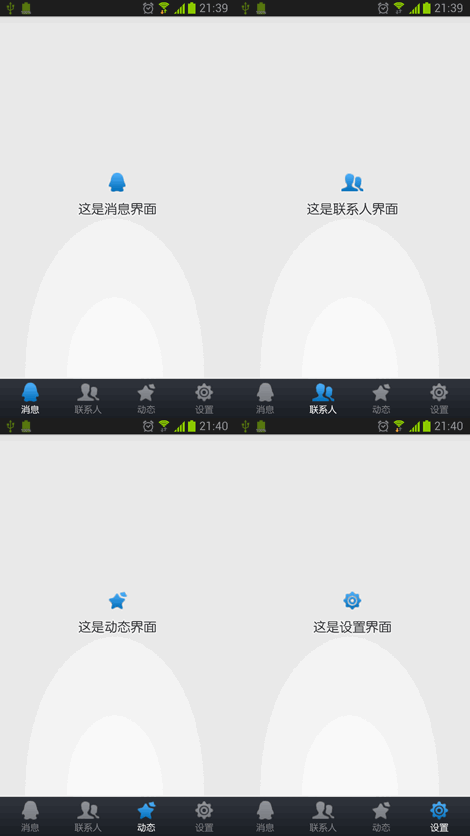
另外,这个Tab界面即使在横屏的情况下也有不错的适用性哦,如下图所示:

这样,我们就成功使用Fragment编写出了和TabHost一样的效果。每个界面的具体逻辑就可以写在相应的Fragment里,效果和之前写在Activity 里是差不多的。如此一来,我们终于可以和那个被废弃的ActivityGroup说再见了!
好了,今天的讲解到此结束,有疑问的朋友请在下面留言。